

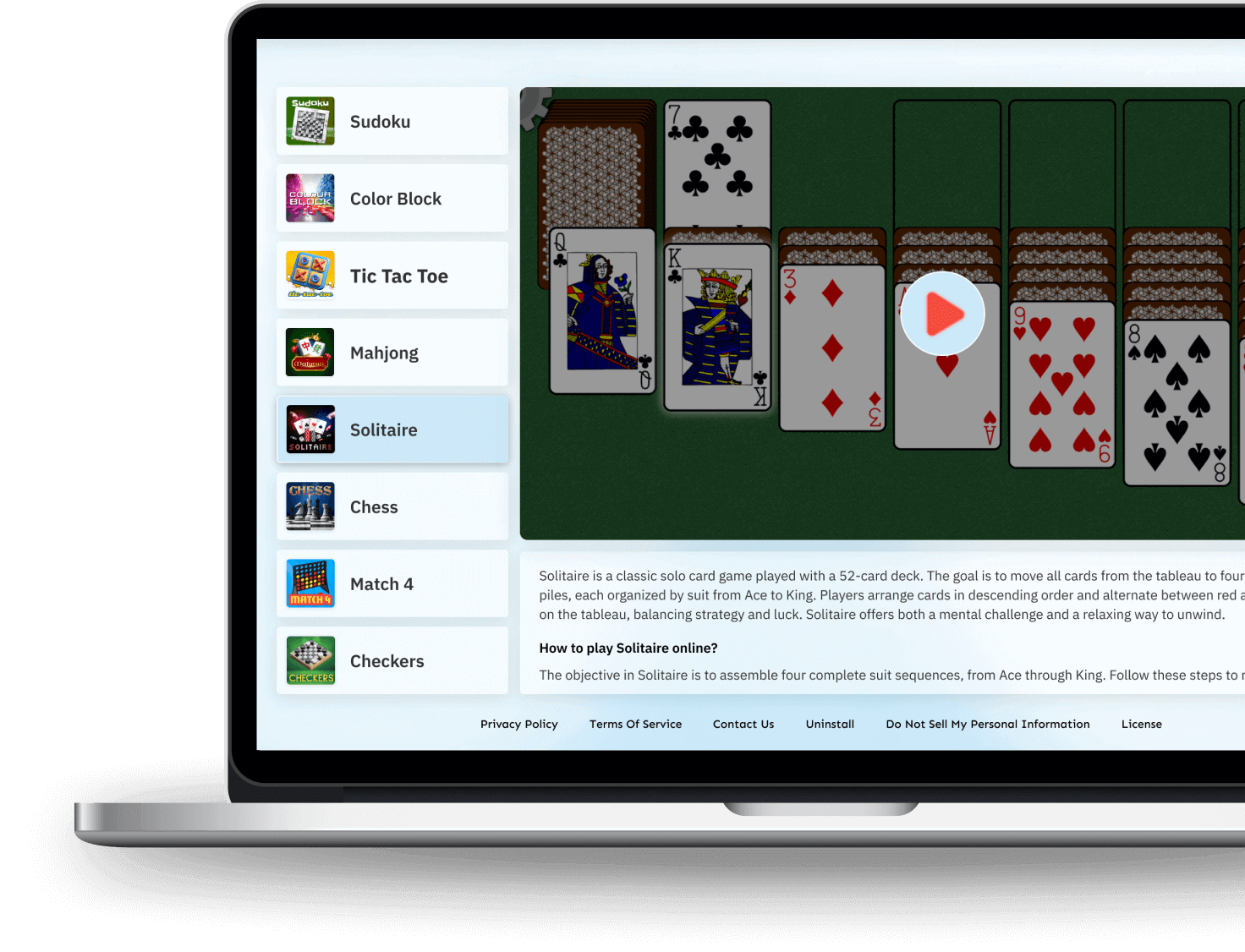
Fun & Easy Games
Dive into a world of classic and challenging games right at your fingertips. From Mahjong to Chess, entertain yourself anytime and anywhere with just a click!


By clicking the button above, I consent to install this add-on and abide by its Terms of Service and Privacy Policy.
Top Features
-
Wide Variety of Games
Enjoy a diverse collection of classic games, including Solitaire, Chess, Sudoku, Mahjong, and much more, all in one place with our Games Universe extension.

-
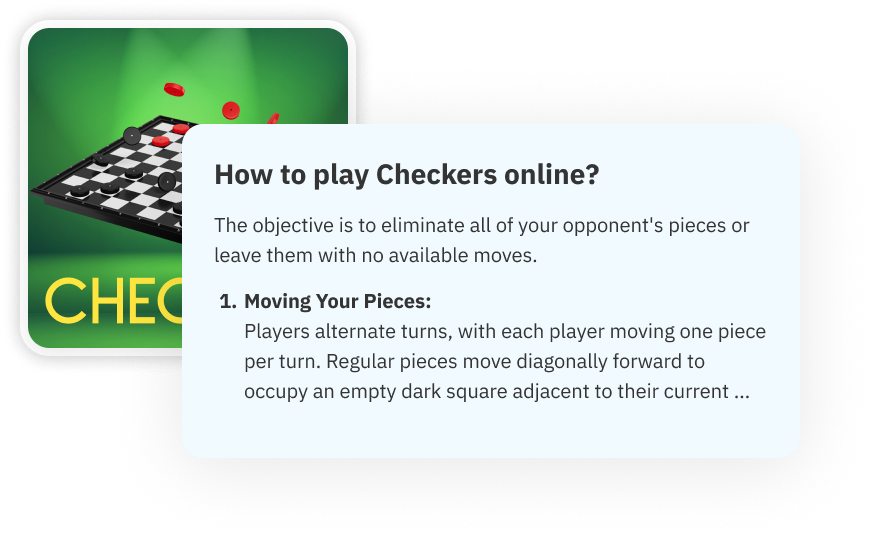
Step-by-Step Instructions
Easily learn how to play each game with clear, concise instructions, ensuring maximum fun, perfect for beginners and seasoned players.
-
User-Friendly Interface
Play games effortlessly with a user-friendly design focused on simplicity and accessibility to enhance your gaming experience.
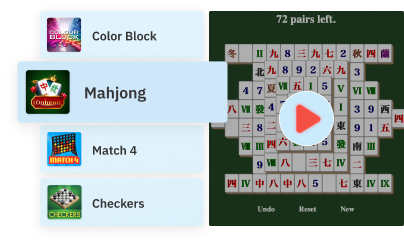
Why Choose Us?
-
Instant Play
No need for lengthy sign-ups or personal details. Launch your game instantly with just one click and start having fun.
-
Uninterrupted Gaming
Play your favourite games for as long as you wish, without any interruptions or countdowns limiting your session time.
-
Free to Play
Enjoy a rich variety of games like Tic-Tac-Toe, Match 4, and Checkers without any hidden costs or subscription fees.
Elevate your gaming experience with the Games Universe extension
Download now!
Frequently asked questions
-
What types of games are available on the extension?

The extension has popular games that cater to different audiences and skill levels. Sudoku, Mahjong, Match 4, Chess, Checkers are some of the games available.
-
Are there in-app purchases?
No. Games Universe is a completely free extension. You will never be prompted to make any purchases, nor are any of the games locked behind paywalls.
-
Do you have tutorials on how to play the games?
Our How-To-Play section gives you everything you need to dive into our classic games. Just pick a game and follow the steps to start playing!
-
How do I install this add-on?
Follow these easy steps to install the Games Universe extension:
On Firefox Add-ons Store:
- Click ‘Get the Add-on’
- Click ‘Add to Firefox’ in the Add-ons Store
- Click ‘Add’ and then ‘Okay’
- Click the favicon icon on your toolbar and select ‘Games Universe & Search'
Chrome Web Store:
- Click ‘Available in the Chrome Web Store’
- Click ‘Add to Chrome’ on the Chrome Web Store
- Click ‘Add extension’
- Click the puzzle icon on your toolbar and select ‘Games Universe’